Showing posts with label Programming. Show all posts

Jun 25, 2015

Getting Started with Spark on Windows

This article talks about how to get started with the Spark shell on Windows. Based on the documentation on Spark's website it seemed like a breeze to get started. But, there were several mistakes I made which took me longer to get started than I had expected. This is what worked for me on a Windows machine:
  1. First, download Spark with a hadoop distribution: http://spark.apache.org/downloads.html

  2. Next, go to Windows=>Run and type cmd to get the DOS command prompt.

    *Note: Take note that Cygwin may not work. You will have to use the DOS prompt.

  3. Change directory into the Spark installation directory (home directory)

  4. Next, at the command prompt, type
    bin\spark-shell.cmd
    
  5. You should see something like this:


  6. Once Spark has started, you will see a prompt "scala>".

  7. If Spark correctly initialized, if you type:
    val k=5+5  
    at the command prompt, you should get back:
    k: Int = 10
    If you don't then Spark did not start correctly.


  8. Another check to do is to go to your Web browser and type http://localhost:port_that_spark_started_on. This value can be found in the start up screen. It is usually 4040, but it can be some other value if Spark had issues binding to that specific port.




Nov 24, 2014

API for Word Counts and N-Gram Counts

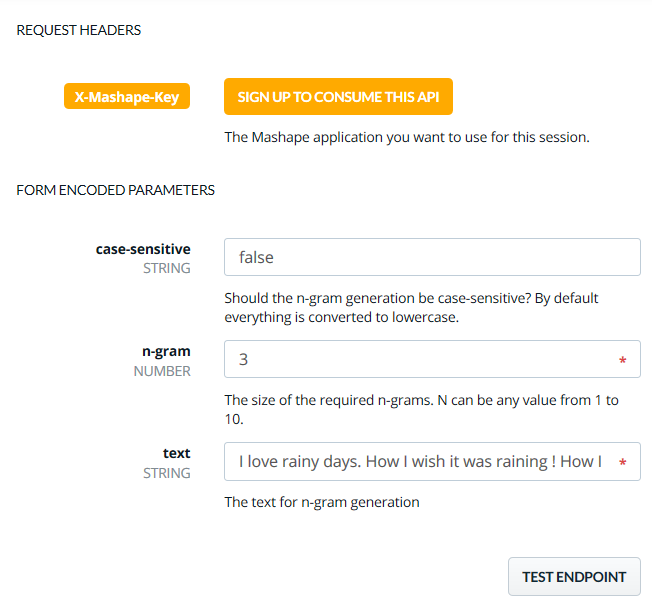
N-grams are essentially a set of co-occurring words within a given window. It has many uses in NLP and text mining right from summarizing to feature extraction in supervised machine learning tasks. Here is a basic tutorial on what n-grams are. In this article, we will focus on a Web API for generating N-Grams which is available on mashape: https://www.mashape.com/rxnlp/text-mining-and-nlp/.

These are the input parameters:

  • text for n-gram generation, 
  • case-sensitive: true/false 
  • n-gram size.

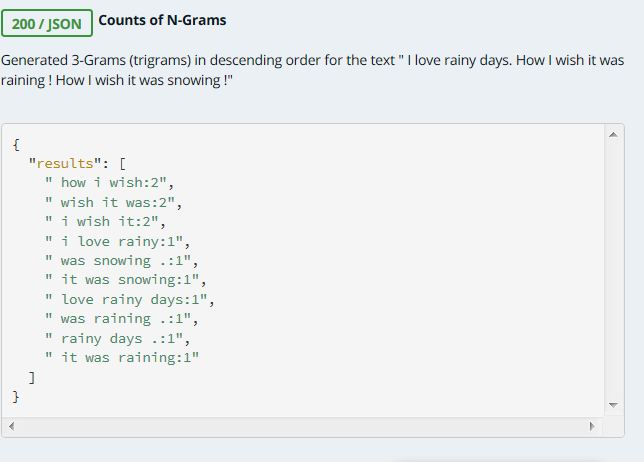
Below is a sample output from the API for the text "I love rainy days. How I wish it was raining ! How I wish it was snowing !". As you can see, you have the n-grams and the count of n-grams in descending order. Note that the API also does basic sentencing to generate sentences from text so that n-grams can be computed. Also note that this tool is language-neutral so you can generate n-grams for multiple languages. To force your sentences to be correctly split, you would probably need to ensure that punctuation is available at least between two consequent sentences. 

Oct 10, 2014

Shell script to count number of words in a file

Count number of words in a file

Count number of words in all files in the current directory. 
$ wc -w *
Count number of words in the given file 
$ wc -w 

Oct 7, 2014

Shell script to generate counts of words in descending order of term frequency

To get word counts from a text file, you don't really need to write a Java or a Python program. You can actually do it using shell scripting which is available by default if you are using Linux. If you are using Windows you can still use shell scripting if you install Cygwin - which is basically a unix command line for Windows. Here is any easy way of doing it:

Assuming you start with a file called my_text_file, we first transform all of the contents of this file to lowercase (my_text_file.lowercase), then split the entire textual content such that we have one word per line (my_text_file.onewordperline). Then we sort the words and count its term frequency and then sort it again by descending term frequency (my_text_file.countsorted). Here is the step-by-step guide:

1. First convert all capital letters to lower cases.
$ tr '[A-Z]' '[a-z]'  my_text_file.lowercase 
2. Split the words on a given line so that each line has only one word.
$ awk '{for (i=1;i<=NF;i++) print $i;}' my_text_file.lowercase > my_text_file.onewordperline
3. Sort all the words and then count the number of occurrences of each word.
$ sort my_text_file.onewordperline | uniq -c > my_text_file.count 
4. Sort the words in descending order of counts so you see the high frequency words.  
$ sort -rn -k1 my_text_file.count > my_text_file.countsorted"  
All steps above in a combined way:
$ tr '[A-Z]' '[a-z]' < my_text_file | awk '{for (i=1;i<=NF;i++) print $i;}' | sort | uniq -c |sort -rn -k1 > my_text_file.countsorted
The "|" character is called a pipe which basically says send the output from the previous command to the next command. The ">" symbol above basically says push the output to the file as named on the right. You don't have to create this file before hand, it is automatically created.
